Short answer: To check bought Instagram shares, saves and reposts, use before-and-after screenshots. Before ordering, open the post, tap View Insights and note the shares count (paper-plane icon), the saves count (bookmark icon) and accounts reached. Open the same screen 24 hours after ordering and compare. Insights shows totals only, never names, and its labels can change between app versions.
Why bought shares, saves and reposts are hard to check
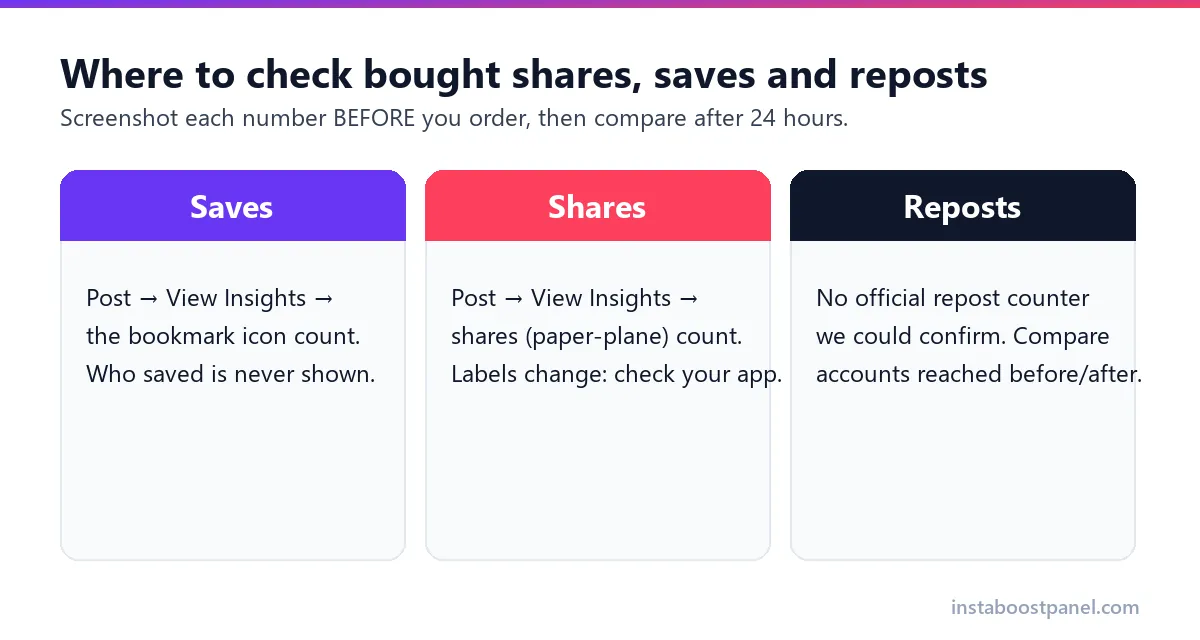
Likes and views are public, so anyone can see them change. Shares, saves and reposts are different. Saves are private: Instagram shows the owner only the total, never who saved (Kontentino). Shares are mostly private sends by DM, so you see a count but not the senders.
Reposts are public in one sense, because they appear on the reposter's own Reposts tab. But we could not find an official Instagram page that confirms a repost counter on your own post, so we do not tell you to rely on one.
That is why you need a method that does not depend on seeing individual accounts: a before-and-after comparison of the numbers Instagram does give you.
The method matters for one more reason. If you only look at a post after ordering, you cannot tell bought actions from the ones the post earned on its own that day. A screenshot taken before the order is the only clean way to check bought numbers, because it fixes your starting point.
Where each number lives in Insights
Open the post, tap View Insights, and look at the interaction icons near the top. Guides describe the bookmark icon as the saves total and the paper-plane icon as the shares total; check what your own app shows, because Instagram renames and moves things between versions.
For reposts, the most dependable figure is indirect: compare accounts reached before and after the order, and look at the post's interactions over the same period.
Keep the screen the same each time. Insights can open on different date ranges or tabs, and comparing a post-level screen with an account-level summary will give you nonsense. If you check bought orders often, save a short note of the exact taps you use so every check starts from the same place.
The before-and-after method, step by step
This method works with any seller. It takes two minutes before ordering and two minutes the next day.
- Pick the post and make sure the account is public. A private account cannot receive these orders.
- Open View Insights and take a full-screen screenshot. Note the date and time.
- Place the order and save the order ID and payment confirmation.
- After 24 hours, take a second screenshot of the same Insights screen.
- Subtract: the change in shares or saves should be close to what you ordered. For reposts, compare accounts reached.
- If the change is far below the order and the estimated time has passed, contact support with the order ID and both screenshots.
Try it with 100 shares for ₹2 →
How long should you wait before you judge?
Give an order the time its seller promises before you judge it. On InstaBoost, the refund policy treats an order as late when it misses the estimated time, usually 24-48 hours, so a check at 24 hours and another at 48 hours covers that window.
Checking every few minutes does more harm than good. Insights figures are estimates that update in batches, so a number that looks stuck at 9 am may jump at noon. Two calm checks a day are enough.
For the final verdict, look again after a week. That is when you learn whether the numbers stayed, which matters more than how fast they arrived.
| Check at | What it tells you |
|---|---|
| 24 hours | Whether delivery has started and roughly how much arrived |
| 48 hours | Whether the order finished inside the usual estimate |
| 7 days | Whether the numbers stayed or drifted down |
A delivery log you can copy
If you run several orders, a simple log saves arguments later. Copy this layout into a notes app or a spreadsheet and fill one row per check.
After a few orders the log also tells you something no seller will: which services hold their numbers on your account and which drift. That is the most useful data you can have before deciding where to spend next month.
| Date and time | Shares | Saves | Accounts reached | Note |
|---|---|---|---|---|
| Before ordering | write it here | write it here | write it here | Order ID, amount paid |
| After 24 hours | write it here | write it here | write it here | Change vs order |
| After 7 days | write it here | write it here | write it here | Any drop? |
What if the numbers did not move?
Before assuming the seller failed, rule out the common causes below. Most of them are quick to check, and two of them are not covered by refund policies.
| Problem | How to spot it | What to do |
|---|---|---|
| Account went private | Profile shows a lock icon | Make it public; private delivery is not refundable |
| Wrong link pasted | Order shows a profile or another post | Contact support quickly; wrong links are excluded |
| Post archived or deleted | Post missing from the grid | Restore it, then contact support |
| Reposts switched off | No Repost option on the post | Turn reposts on for the post |
| Still inside the estimate | Less than 24-48 hours passed | Wait, then check again |
Do you need a professional account to see Insights?
Instagram's Help Center describes Insights as a free tool for business and creator profiles (Instagram Help Center). Some guides now say public personal accounts can see some figures too. If you do not see View Insights under your post, switching to a free creator account in settings is the usual fix.
Insights figures such as reach are estimates, and they can update with a delay. Compare screenshots taken at least a day apart rather than refreshing every few minutes.
If you plan to check bought orders this way, make the switch a few days before you need the numbers, and confirm that View Insights actually appears under the post you will test. A test that starts without a working Insights screen cannot give you a before-and-after comparison.
How to claim a refund for an undelivered order
To claim, write to support with your order ID, as the refund policy asks. Orders that miss the estimated time (usually 24-48 hours) are refunded in full and partial orders pro rata; orders on private accounts or wrong links are not.
Send both screenshots with your message. A clear before-and-after pair is the fastest way for any support team, ours included, to see what happened.
If you bought followers rather than shares or saves, our older guide on followers not delivered and refunds covers that case in detail.
Reading the result honestly
A count that moved by the right amount proves one thing: the seller delivered. It does not prove that more people will discover you, because bought actions do not come with real attention attached.
Whatever the numbers show, remember that Meta's spam policy does not allow bought engagement. A delivered order proves the seller works; it does not prove the audience is real.
Use the method to compare sellers, to stop paying the ones that fail, and to keep orders small enough that they never look strange next to your post's own activity.
Frequently asked questions
Related guides
Ready to grow your Instagram?
Screenshot first, order small, check after 24 hours. 100 shares cost ₹2.
Start Growing Now →